Make Pop Art from a Photo: A Cat Portrait Tutorial
Turn a photo into a pop art portrait with a clear editing workflow, original color palettes and a four-panel layout, using a cat photo as the example.
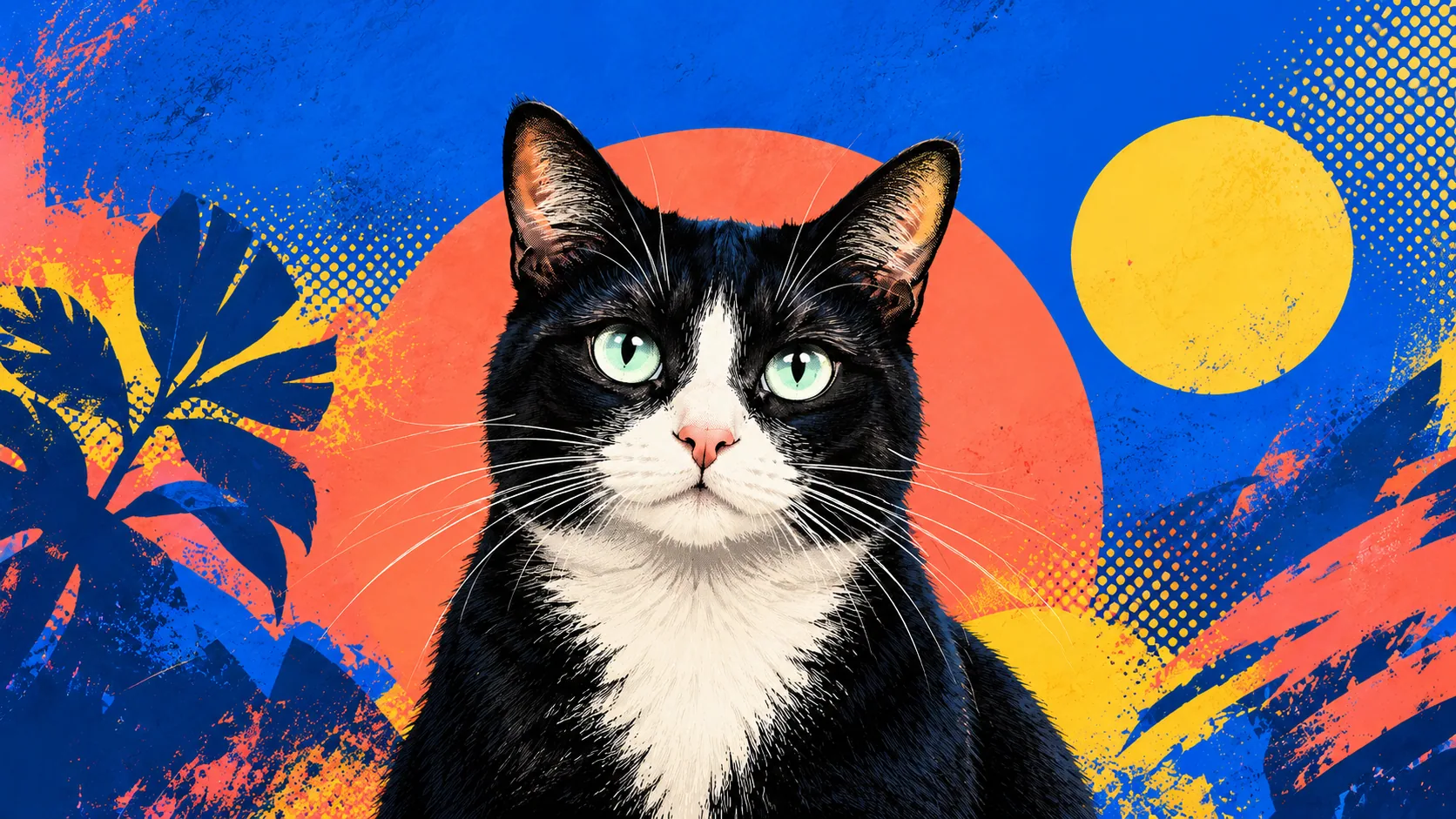
Table of Contents
To make pop-art-style color panels from a photo, simplify the light and dark areas, assign a small contrasting palette, then repeat the same composition in several color schemes. Start with a photograph whose face is already readable; the effect will exaggerate confusing shadows as readily as useful shapes.
Open the four-panel color lab. It runs locally and exports a 1600 × 1600 PNG. It uses a deterministic three-tone color mapping, not AI, and it does not upload your photo.
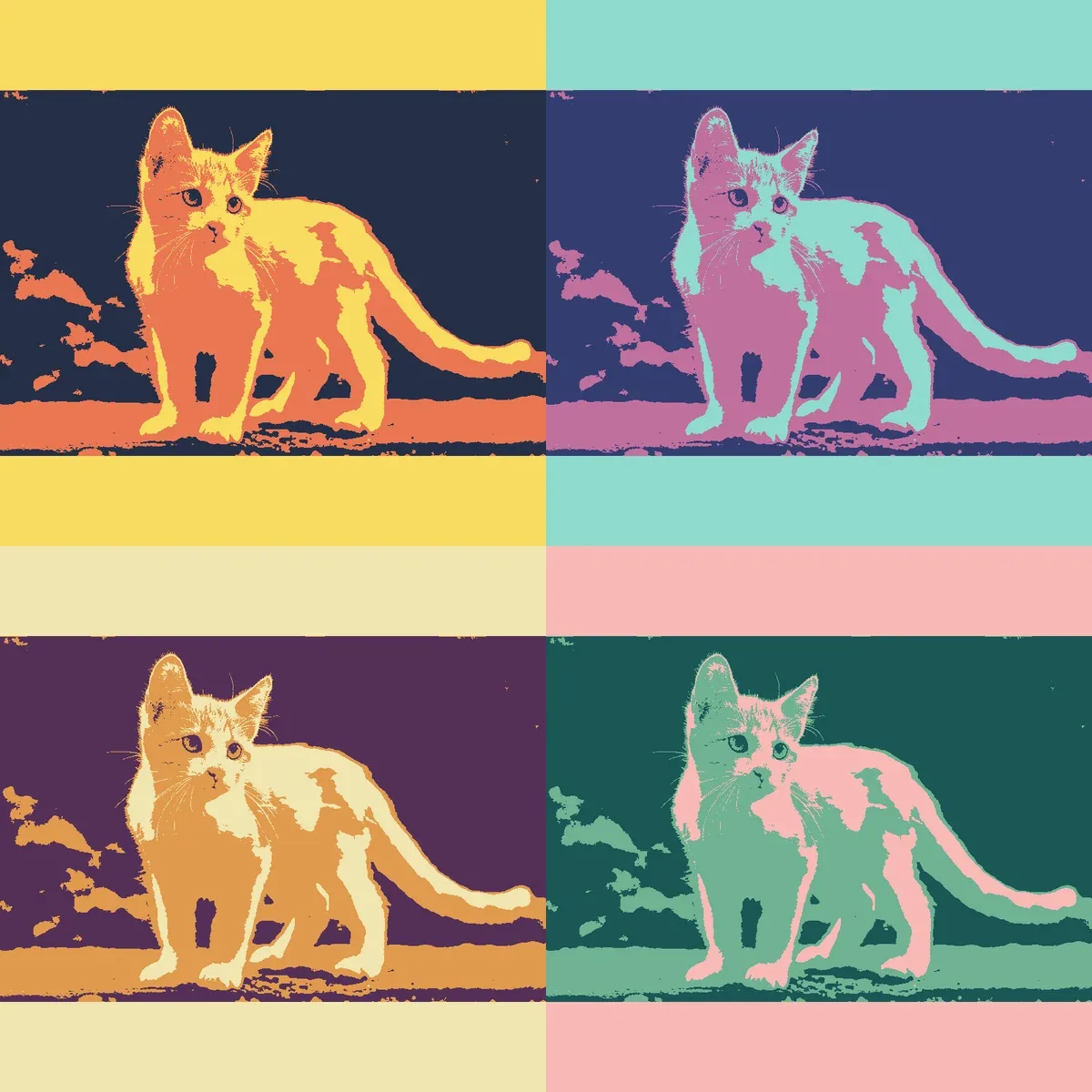
Actual digital export from the linked local tool, using a Frameow reference image. This is a layout example, not a physical print proof.
Choose a photograph with separate shapes
A clear face, visible ears and a simple background are easier to translate into flat areas. Avoid a tiny face surrounded by a complicated room. If you crop first, keep a copy of the original and leave room around the ears.
For a black cat, choose a photo where the eyes and muzzle can be distinguished from the surrounding fur. For a white cat, preserve shadow detail around the face. The tool cannot recover information hidden in an empty black or white area.
Make and compare two tonal maps
- Open a JPEG, PNG or WebP in the lab. The whole photo is fitted into each square panel. For a borderless composition, make a square crop in your photo editor first, leaving room around the ears.
- Export the default 75 / 175 thresholds as a baseline. All four panels share one tonal map and differ only in palette.
- Keep the same photo and set 95 / 175. Raising only the low threshold moves some midtone pixels into the darkest group. Compare the same panel in the two exports: do the eyes remain separate from the coat?
- Return toward 75 if dark areas swallow the face. Adjust the high threshold only after choosing the shadow setting; it controls how much falls into the lightest group.
- Record the final two values beside the original photo. The lab exports a flattened PNG and does not save an editable project or retain edits after reload.
Change one control at a time. Compare the tonal shapes before comparing palettes, so a color preference does not hide a lost muzzle or marking.
Keep the cat recognizable
| What went wrong | What to change |
|---|---|
| Eyes merge into the coat | Shift the shadow threshold or choose a better-lit reference |
| White muzzle disappears | Adjust the highlight threshold and inspect the original |
| Background becomes a distracting mosaic | Simplify or crop the source before mapping |
| Colors are lively but face is confusing | Reduce detail and strengthen the main silhouette |
A successful result does not need every whisker. It does need enough of the original face and marking pattern to remain your cat.
Understand what this effect is
This project is a digital color treatment with repeated panels. It is not a hand-pulled screenprint, and it does not reproduce a particular artist's original work. If you want individually editable paths or separated printing plates, the flattened PNG is not that deliverable.
For more control in your own editor, keep the source photo on one layer, make a separate tonal treatment, and keep each panel in its own group. Save the layered source before exporting a flattened copy. The browser lab itself exports only the finished PNG.
Save and proof
Inspect the 1600 × 1600 export at full size and as a small thumbnail. Check that the face survives both views. Keep the original photo and record the two threshold values if you want to repeat the same effect later.
At 300 pixels per inch, the complete export corresponds to about 5.3 inches square; a larger print uses fewer pixels per inch. Ask your printer what suits the intended viewing distance rather than assuming a poster-sized result.
Frameow's Retro Pop Art style is an optional AI portrait route when you want a generated interpretation. Use the color lab when you want this specific repeatable photo-to-three-tone workflow and its four-panel file.
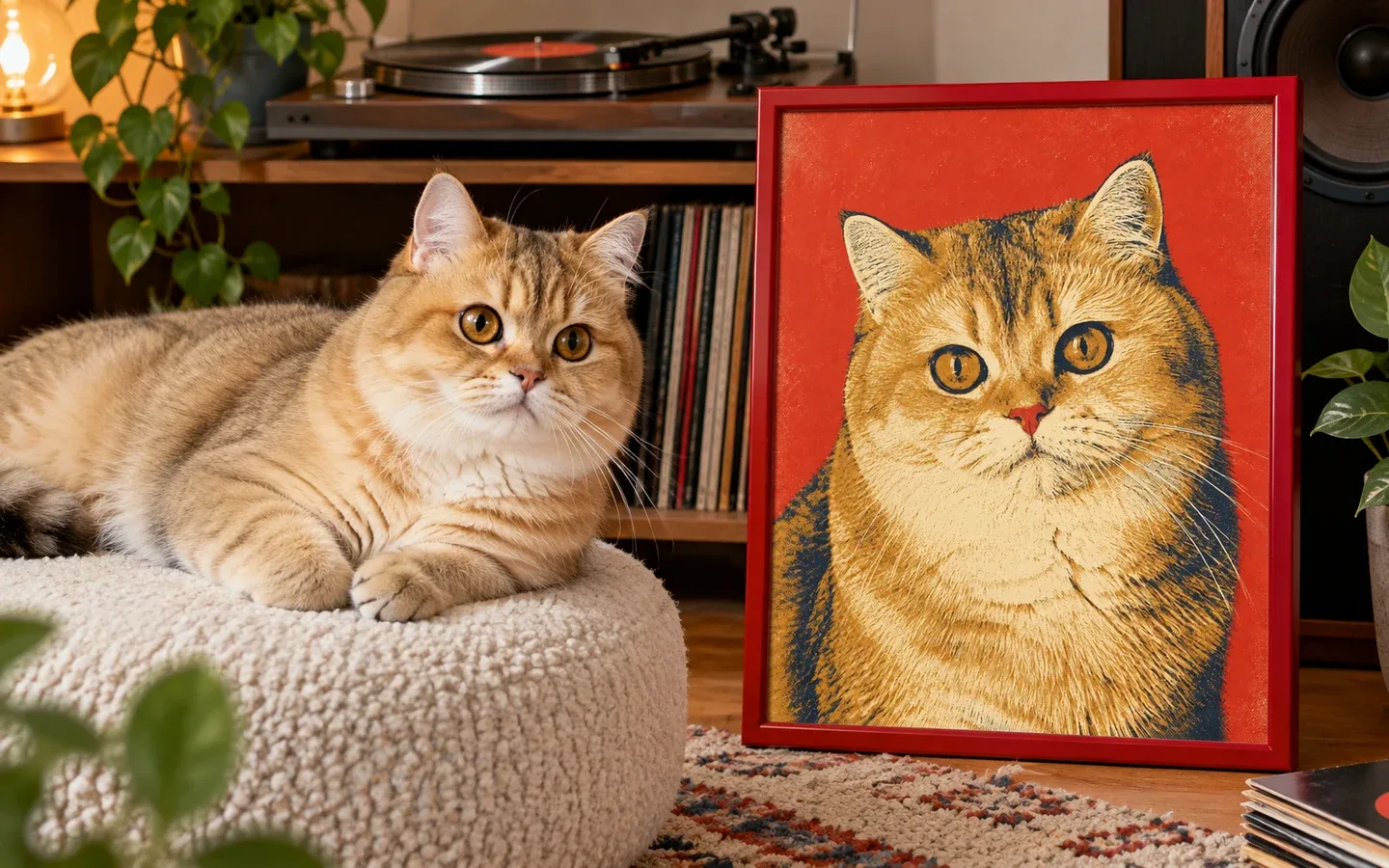
Retro Pop Art Cat Portrait
An optional generated pop-art interpretation
Compare the reference and generated portrait before choosing this route. Use the local color lab above when you want its exact repeatable four-panel treatment.
Create my cat’s portraitImage credit
The kitten in the editor example is Gawain, photographed by Marie-Lan Nguyen, used under CC BY 2.5. The editor example applies a color treatment. The cover is a separate AI-generated pop-art concept.
Cat portrait tutorials, creative gift ideas, and new styles from the Frameow team.